12 Claude Shortcuts That Slashed My Workflow in Half. Here's the Full List.
The author tracked daily operations in Claude and Claude Code for a week, finding that about 51 minutes per day were wasted on clicking, navigating, waiting, and resending. By testing every shortcut, 12 were selected (6 browser + 6 terminal) with quantified time and token savings. After adoption, daily ops dropped to 22 minutes, saving 29 minutes and ~35% tokens. Essential reading for heavy Claude users.
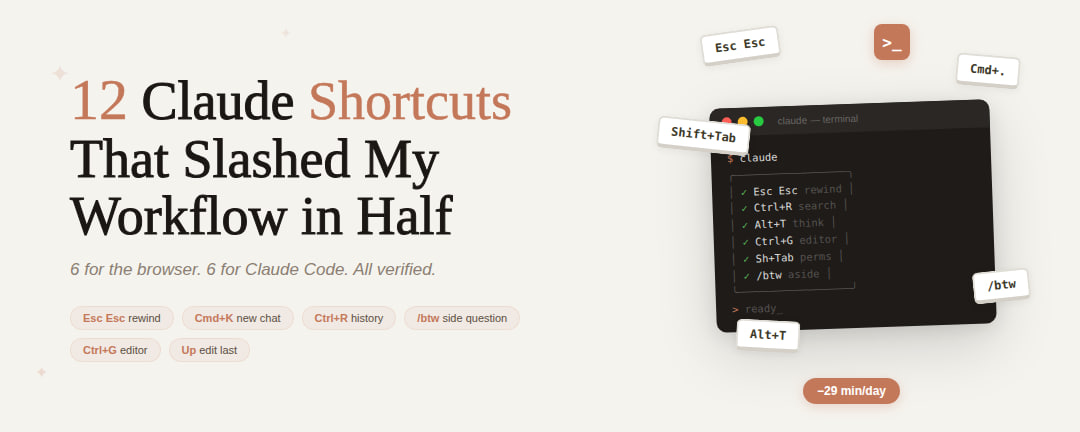
Whether you opened Claude for the first time last week or you've been shipping with it daily since launch - there's something here you're not using.
I spent a week tracking every click, every menu navigation, every time I waited for a response I should have stopped three paragraphs ago.
51 minutes a day. Not on thinking. On clicking, scrolling, waiting, and resending messages that didn't need resending.
Then I went through every shortcut in Claude - browser and terminal. Tested each one. Timed the difference. Kept the 12 that actually changed how I work.
6 for the browser. 6 for Claude Code. All verified. All real. Here's every single one.
You can check the browser shortcuts yourself by pressing Cmd+? (Mac) or Ctrl+? (Windows) in any chat.
无论你是上周第一次打开Claude,还是从发布那天起每天都在用它——总有一些你还没用到的功能。
我花了一周时间追踪每一次点击、每一次菜单导航,以及每一次等待本可以在三段落之前就停止的回复。
每天51分钟。不是花在思考上,而是花在点击、滚动、等待和重发那些本不需要重发的消息上。
然后我逐一测试了Claude中的所有快捷方式——浏览器和终端。记录时间差。保留了12个真正改变工作方式的快捷方式。
6个用于浏览器。6个用于Claude Code。全部经过验证,全部真实有效。以下是完整列表。
你可以在任何聊天界面按Cmd+?(Mac)或Ctrl+?(Windows)自己查看浏览器快捷方式。

— BROWSER (claude ai) —
1. Cmd+K / Ctrl+K — Start New Chat
The most basic shortcut on the list.
Instead of reaching for the "Start New Chat" button in the corner, you press one combination and land in a clean input field. Context cleared. Fresh start.
Sounds trivial until you count how many times a day you start new conversations. I start 15-20. At 4 seconds saved each time, that's over a minute a day on just this one shortcut.
before: mouse to corner → click "New Chat" → wait → 4 seconds
after: Cmd+K → already typing → 0.3 seconds
The real value isn't the seconds. It's that you'll actually start fresh chats when you should instead of cramming unrelated questions into an overloaded conversation.
— BROWSER (claude ai) —
1. Cmd+K / Ctrl+K — 开始新对话
这是列表中最基础的快捷方式。
无需移动鼠标点击角落的“开始新对话”按钮,只需按下一个组合键,就会有一个干净的输入框等待着你。上下文已清除,重新开始。
听起来微不足道,但数一数你每天开始多少次新对话就知道了。我每天开始15-20次新对话。每次节省4秒,仅这一个快捷方式每天就节省超过一分钟。
之前:鼠标移动到角落 → 点击“新对话” → 等待 → 4秒
之后:Cmd+K → 立即开始输入 → 0.3秒
真正的价值不在于节省的秒数,而在于你会在应该开始新对话时真正去做,而不是把不相关的问题塞进一个已经过载的对话中。
2. Arrow Up (↑) — Edit Last Message
This one hurts when you learn it late.
You send a prompt. Claude misunderstands. So you type "No I meant..." and send a follow-up. Now Claude re-reads the entire conversation history plus your correction. Tokens wasted. Context polluted.
Arrow up opens your last message for editing. Make sure the input field is empty first. Claude regenerates from the fixed version. The bad exchange gets replaced, not stacked.
follow-up: original + correction + full re-read = 2x tokens
edit: fixed message + clean regeneration = 1x tokens
Token math at message 20:
follow-up: ~10,500 tokens (re-reads everything + new message)
edit: ~500 tokens (just the regeneration)
21x difference. On a single message. This alone can change your monthly token spend.
2. 上箭头 (↑) — 编辑上一条消息
这个快捷方式发现晚了会很痛苦。
你发送了一条提示。Claude理解错了。于是你输入“不,我的意思是...”然后发送一条后续消息。现在Claude会重新读取整个对话历史加上你的修正。浪费了令牌,污染了上下文。
按上箭头可以打开你上一条消息进行编辑。确保输入框为空。Claude会根据修正后的版本重新生成。糟糕的交流被替换,而不是叠加。
后续消息:原文 + 修正 + 完整重读 = 2倍令牌
编辑:修正消息 + 干净生成 = 1倍令牌
在第20条消息时的令牌计算:
后续消息:约10,500个令牌(重读所有内容+新消息)
编辑:约500个令牌(仅重新生成)
相差21倍。仅仅一条消息。仅此一项就可以改变你每月的令牌花费。
3. Cmd+. / Ctrl+. — Stop Generation
Claude starts writing a massive response. Two paragraphs in you can see it's going in the wrong direction. Or it's hallucinating. Or it's writing code you didn't ask for.
Cmd+. kills it instantly. Claude keeps what it already wrote. You redirect from there.
waiting for a bad response to finish: 15-30 seconds of watching wrong output
Cmd+. at paragraph two: 0 seconds wasted
Every token Claude generates after you've seen the problem is a token you're paying for. On a long wrong response that's 500-1,000 tokens burned for nothing. I hit this 10-15 times a day.
3. Cmd+. / Ctrl+. — 停止生成
Claude开始编写一个庞大的响应。写到第二段时你已经发现方向不对。或者它在胡编乱造。或者它在写你没要求写的代码。
Cmd+. 立即终止生成。Claude保留已经写好的内容。你从那里重新引导。
等待一个糟糕的响应结束:15-30秒观看错误输出
在第二段按Cmd+.:0秒浪费
在你发现问题后Claude生成的每一个令牌都是你在付费。对于一个长而错误的响应,可能会白白消耗500-1000个令牌。我每天使用这个10-15次。
4. Cmd+/ ; Ctrl+/ — Toggle Sidebar
The sidebar eats 280px of your screen. On a laptop that's 20% of your viewport showing a list of old conversations you aren't looking at right now.
Cmd+/ hides it. Press again - it comes back.
1440px screen with sidebar: 1160px for content
without: 1440px for content
24% more working space
Keep it closed by default. Flash it open only when switching between chats. Same logic as hiding the dock on your Mac - you don't need it visible 100% of the time.
4. Cmd+/ ; Ctrl+/ — 切换侧栏
侧栏占用了你屏幕的280像素。在笔记本电脑上,这相当于20%的视口面积用来显示你现在根本不会看的老对话列表。
Cmd+/ 隐藏它。再次按下——它又回来。
1440px屏幕带侧栏:1160px用于内容
不带侧栏:1440px用于内容
增加了24%的工作空间
默认保持关闭。只在切换对话时快速打开。这与隐藏Mac上的Dock是同样的逻辑——你不需要它100%的时间都可见。
5. Cmd+Shift+L / Ctrl+Shift+L — Toggle Dark/Light Theme
It's 11pm and the white screen is burning your retinas. Or it's morning and dark mode looks washed out in sunlight.
Cmd+Shift+L flips between dark and light mode instantly. Faster than digging through profile settings.
before: click profile → settings → appearance → toggle → 6 seconds
after: Cmd+Shift+L → done → 0.2 seconds
Minor? Sure. But you do it at least twice a day - morning and evening. And the shortcut existing means you'll actually switch when you need to instead of squinting for another hour.
5. Cmd+Shift+L / Ctrl+Shift+L — 切换暗/亮主题
晚上11点,白色屏幕在灼烧你的视网膜。或者早晨,暗色模式在阳光下显得褪色。
Cmd+Shift+L 在暗色和亮色模式之间瞬间切换。比在设置中翻找快得多。
之前:点击个人资料 → 设置 → 外观 → 切换 → 6秒
之后:Cmd+Shift+L → 完成 → 0.2秒
小功能?确实。但你每天至少用两次——早晨和晚上。而且这个快捷方式的存在意味着你会在需要时真正切换,而不是再眯着眼睛撑一个小时。
6. Shift+Enter — New Line Without Sending
You're writing a structured prompt. Multiple instructions, code blocks, specific formatting. You hit Enter to make a new paragraph. The message sends. Half-finished.
Shift+Enter creates a new line. Your message stays in the input field until you actually press Enter alone.
accidental sends per day before learning this: 4-5
after: 0
Each accidental send wastes tokens on Claude's response to your incomplete thought plus the follow-up to fix it. At 4 accidents a day that's roughly 4,000 wasted tokens daily - gone because of one key.
Write your full prompt. Structure it. Then send when ready.
6. Shift+Enter — 换行而不发送
你正在编写结构化的提示。多个指令、代码块、特定格式。你按下Enter想新建一个段落,结果消息发送了。只完成了一半。
Shift+Enter 创建一个新行。你的消息留在输入框中,直到你单独按Enter才发送。
学会之前每天的意外发送:4-5次
之后:0次
每次意外发送会浪费Claude对你未完成想法的响应以及随后的修正所需的令牌。每天4次意外发送,大约浪费4,000个令牌——因为一个按键而消失。
编写完整的提示。组织好结构。准备好后再发送。
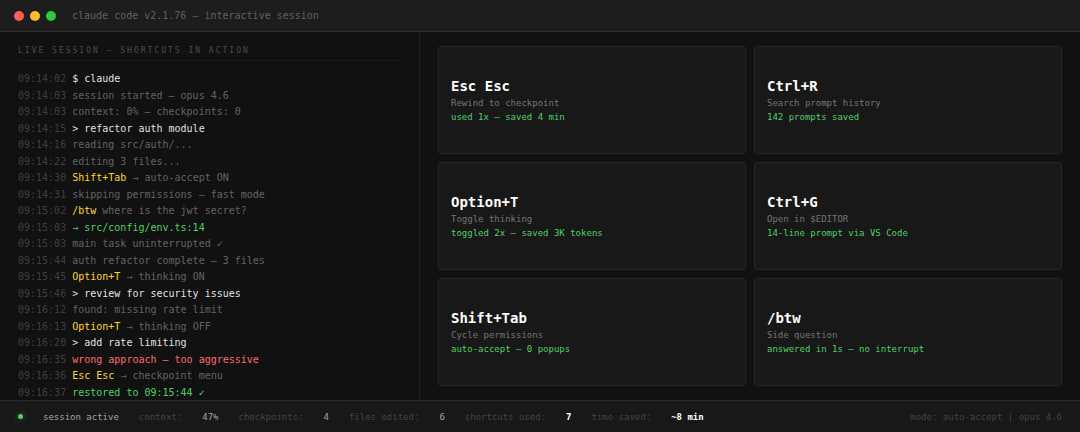
— CLAUDE CODE (terminal) —
7. Esc Esc — Rewind to Any Checkpoint
Single Esc stops generation. Everyone knows that.
Double Esc opens something most people have never seen - a scrollable list of every checkpoint Claude Code created during your session. Every file state. Every conversation state. Fully restorable.
Claude rewrote your auth module and made it worse? Esc Esc → restore from 3 edits ago
Claude went down a rabbit hole for 10 minutes? Esc Esc → back to before the detour
Want to try something you're only 40% sure about? Try it. Fail. Esc Esc → 5 seconds to undo everything
Four options: restore code and conversation, conversation only, code only, or summarize from checkpoint forward.
This changes how aggressively you can experiment. Zero risk. Full undo. Let Claude try wild approaches - if they fail, rewind costs nothing.
— CLAUDE CODE (terminal) —
7. Esc Esc — 回退到任何检查点
单次Esc停止生成。每个人都知道。
双击Esc打开一个大多数人从未见过的窗口——一个可滚动的列表,列出了Claude Code在会话中创建的每一个检查点。每一个文件状态。每一个会话状态。完全可恢复。
Claude重写了你的认证模块但搞砸了?Esc Esc → 从3次修改前恢复
Claude钻了10分钟的牛角尖?Esc Esc → 回到偏题之前
想尝试一个只有40%把握的东西?试试,失败。Esc Esc → 5秒钟撤销一切
四个选项:恢复代码和对话、仅对话、仅代码,或从检查点向前总结。
这改变了你实验的激进程度。零风险。完全撤销。让Claude尝试疯狂的做法——如果失败,回退没有任何成本。
8. Ctrl+R — Reverse Search Prompt History
Claude Code keeps your full prompt history across sessions. Ctrl+R lets you fuzzy-search through all of it.
You ran a complex prompt three days ago that worked perfectly. Instead of retyping it or scrolling through terminal history, Ctrl+R → type two keywords → it's back.
retyping a 4-line prompt from memory: 45 seconds + probably wrong
Ctrl+R → "auth refactor" → exact prompt appears → 3 seconds
This gets more powerful the longer you use Claude Code. After a month your prompt history is a personal library of everything that worked. Ctrl+R is how you search it.
8. Ctrl+R — 反向搜索提示历史
Claude Code会跨会话保留你的完整提示历史。Ctrl+R 让你可以模糊搜索所有这些内容。
你三天前运行了一个复杂的提示,效果完美。与其重新输入或在终端历史中滚动,不如按Ctrl+R → 输入两个关键词 → 它回来了。
从记忆中重新输入一个4行的提示:45秒 + 很可能出错
Ctrl+R → “auth refactor” → 精确提示出现 → 3秒
使用Claude Code的时间越长,这个功能就越强大。一个月后,你的提示历史就是一个包含所有有效内容的自定义库。Ctrl+R 就是搜索它的方式。
9. Alt+T / Option+T — Toggle Extended Thinking
Extended thinking is powerful but expensive. Adds significant tokens to every response. Most people either leave it always on or never touch it.
Option+T toggles it per message. Quick formatting question? Leave it off. Complex architecture decision? Flip it on. Back to a simple question? Off again.
thinking on a simple rename: 3,000+ tokens wasted
thinking on a complex debug: 3,000 tokens well spent
The toggle takes 0.2 seconds. The menu click path takes 4. That difference means you'll actually switch it per question instead of leaving it in whatever state it was.
9. Alt+T / Option+T — 切换扩展思考
扩展思考功能强大但代价高昂。每次响应都会增加大量令牌。大多数人要么一直开着它,要么从未碰过它。
Option+T 可以逐条消息切换。快速格式化问题?关掉它。复杂架构决策?打开它。回到简单问题?再次关掉。
简单重命名时打开思考:浪费3,000+令牌
复杂调试时打开思考:3,000令牌物有所值
切换只需0.2秒。菜单点击路径需要4秒。这种差异意味着你会真正根据每个问题切换,而不是让它停留在任何状态。
10. Ctrl+G — Open Prompt in External Editor
The terminal input is one line. Writing a multi-paragraph prompt with specific instructions, code snippets, and formatting in a single terminal line is painful.
Ctrl+G opens your default text editor ($EDITOR - vim, VS Code, whatever you have set). Write your prompt in a real editor with real editing tools. Save and close. It sends.
writing a complex 10-line prompt in terminal: fighting the cursor for 2 minutes
Ctrl+G → write it properly in VS Code → save → 30 seconds
This is mandatory for anyone writing detailed CLAUDE.md-style instructions as prompts. The terminal input wasn't built for paragraphs. Your editor was.
10. Ctrl+G — 在外部编辑器中打开提示
终端输入只有一行。在单行终端中编写包含具体指令、代码片段和格式的多段落提示是很痛苦的。
Ctrl+G 会打开你的默认文本编辑器($EDITOR - vim、VS Code,任何你设置的)。在真正的编辑器中使用真正的编辑工具编写提示。保存并关闭。它会发送。
在终端中编写复杂的10行提示:与光标搏斗2分钟
Ctrl+G → 在VS Code中正确编写 → 保存 → 30秒
对于任何编写详细CLAUSE.md风格指令作为提示的人来说,这是必备的。终端输入不是为段落设计的。你的编辑器才是。
11. Shift+Tab — Cycle Permission Modes
Claude Code asks permission for every file edit and every command. "Can I edit this file?" "Can I run npm test?" Safe but slow.
Shift+Tab cycles through three modes: normal → auto-accept → plan mode.
normal: Claude asks permission for everything (safe, slow)
auto-accept: Claude executes without asking (fast, trust required)
plan: Claude shows what it will do but doesn't execute (review first)
Switch to auto-accept when you're iterating fast on a feature you understand. Switch to plan mode when Claude is doing something you want to verify first. Switch back to normal when working on sensitive code.
One keypress to change the entire interaction speed. The mode shows below your prompt so you always know where you are.
11. Shift+Tab — 循环切换权限模式
Claude Code会为每次文件编辑和每个命令请求权限。“我可以编辑这个文件吗?”“我可以运行npm test吗?”安全但慢。
Shift+Tab 在三种模式间循环:正常 → 自动接受 → 计划模式。
正常:Claude对所有操作请求权限(安全,慢)
自动接受:Claude无需询问直接执行(快速,需要信任)
计划:Claude显示它将做什么但不执行(先审查)
在你理解某个功能并快速迭代时切换到自动接受。当Claude正在执行你想先验证的操作时切换到计划模式。在处理敏感代码时切换回正常模式。
一次按键就能改变整个交互速度。模式显示在你的提示下方,所以你始终知道当前处于什么状态。
12. /btw — Ask a Side Question Without Interrupting
Claude is mid-task. Refactoring a module. Three files deep. You suddenly need to know something - "what file was that error in?" or "what's the function signature for X?"
Before /btw: you either wait for Claude to finish (could be minutes) or Ctrl+C to cancel the whole task, ask your question, then re-prompt the original task. All context from the interrupted task - gone.
/btw lets you ask a side question while Claude keeps working. The answer comes without touching the main task's conversation history.
before: cancel task → ask question → re-prompt task → lose 5 minutes + context
after: /btw what file has the auth middleware? → answer in 3 seconds → task continues
Built by Erik Schluntz on the Claude Code team. The tweet announcing it got 2.2M views. The demand for "ask without derailing" was huge - and this is the answer.
You won't remember all 12 today. Don't need to.
Pick three that match the pain you felt today. Use them for a week. Add three more. In a month your hands will move faster than your brain can think about where to click.
12. /btw — 在不中断的情况下提问
Claude正在执行任务。重构一个模块。深入三个文件。你突然需要知道一些东西——“那个错误在哪个文件中?”或者“X的函数签名是什么?”
在/btw之前:你要么等待Claude完成(可能需要几分钟),要么按Ctrl+C取消整个任务,提问,然后重新提示原始任务。所有被中断任务的上下文——丢失。
/btw 让你在Claude继续工作时提出一个附带问题。答案不会触及主任务的对话历史。
之前:取消任务 → 提问 → 重新提示任务 → 损失5分钟 + 上下文
之后:/btw 哪个文件有auth中间件?→ 3秒内回答 → 任务继续
由Claude Code团队的Erik Schluntz开发。宣布它的推文获得了220万次观看。对“不偏离轨道的情况下提问”的需求巨大——而这就是答案。
我不会期望你今天就记住全部12个。不需要。
选择三个与你今天感受到的痛苦相匹配的。使用一周。再添加三个。一个月后,你的手移动速度会比你的大脑思考点击哪里更快。
Here's the full list:
BROWSER (claude. ai):
- Cmd+K — start a new chat instantly
- ↑ — edit your last message instead of sending a follow-up
- Cmd+. — stop generation mid-response
- Cmd+/ — toggle sidebar on and off
- Cmd+Shift+L — switch between dark and light theme
- Shift+Enter — new line without sending the message
CLAUDE CODE (terminal):
- Esc Esc — rewind to any checkpoint
- Ctrl+R — search your full prompt history
- Option+T — toggle extended thinking per message
- Ctrl+G — write prompts in your real editor
- Shift+Tab — cycle through permission modes
- /btw — ask a side question without interrupting a task
Mac shortcuts shown. Replace Cmd with Ctrl on Windows/Linux. Option = Alt.
I tracked a full week before and after.
before: ~51 minutes per day on clicking, navigating, waiting, resending
after: ~22 minutes on the same actions
saved: 29 minutes daily
monthly: ~10 hours
token savings from editing, stopping, and thinking toggles: ~35%
29 minutes × 250 work days = 120 hours a year.
Three full work weeks. Saved by pressing keys instead of clicking buttons.
以下是完整列表:
BROWSER (claude. ai):
- Cmd+K — 立即开始新对话
- ↑ — 编辑上一条消息而不是发送后续
- Cmd+. — 在生成过程中停止
- Cmd+/ — 开关侧栏
- Cmd+Shift+L — 切换暗色和亮色主题
- Shift+Enter — 换行而不发送消息
CLAUDE CODE (terminal):
- Esc Esc — 回退到任何检查点
- Ctrl+R — 搜索你的完整提示历史
- Option+T — 每条消息切换扩展思考
- Ctrl+G — 在你的真实编辑器中编写提示
- Shift+Tab — 循环切换权限模式
- /btw — 在不中断任务的情况下提问
显示的是Mac快捷方式。在Windows/Linux上将Cmd替换为Ctrl。Option = Alt。
我跟踪了整整一周前后的数据。
之前:每天约51分钟用于点击、导航、等待、重发
之后:相同操作约22分钟
节省:每天29分钟
每月:约10小时
编辑、停止和思考切换节省的令牌:约35%
29分钟 × 250个工作日 = 每年120小时。
三个完整的工作周。通过按快捷键而不是点击按钮而节省的时间。
